Getting the most out of your PlayStation 4 experience often comes down to one crucial element: sound. Whether you are diving into a sprawling open-world adventure or competing in an intense online match, a quality gaming headset can transform the way you engage with every game. Fortunately, connecting a headset to your PS4 is far more straightforward than many players realise, and there are several reliable methods available depending on the type of peripherals you own.
The essentials
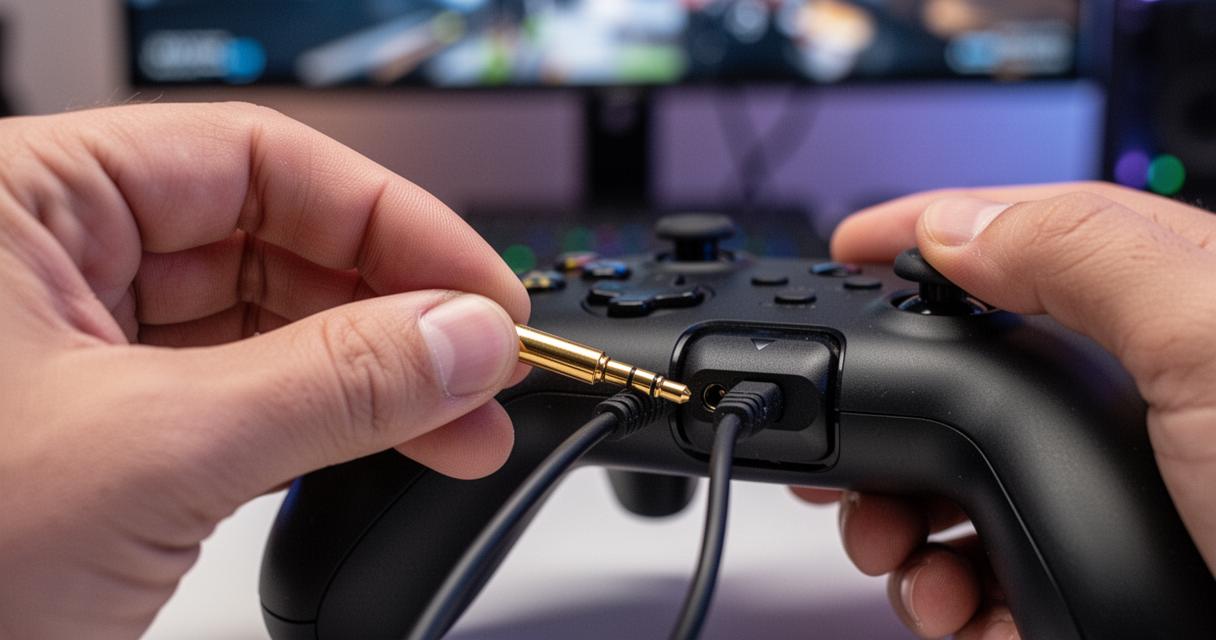
- The simplest way to connect a headset is by plugging it directly into the 3.5mm jack port on the DualShock 4 controller.
- Users should adjust the PS4 ‘Audio Devices’ settings to ensure all game audio, rather than just chat audio, is routed to the headset.
- USB gaming headsets can be connected directly to the console’s front ports for potentially richer audio quality and consistent performance.
- Players must verify that the PS4 has correctly assigned the USB headset as both the default input and output device within the system menu.
- Since the PS4 does not support standard Bluetooth, wireless headsets require compatible USB dongles or transmitters to ensure a low-latency connection.
- Fine-tuning microphone sensitivity and performing audio tests within the settings menu helps ensure clear communication for multiplayer gaming.
- For audiophiles, using an external DAC combined with a controller connection offers a flexible hybrid solution for high-quality audio setups.
Establishing a Wired Connection via the DualShock Controller
Utilising the 3.5mm jack port
One of the simplest and most accessible ways to connect a gaming headset to a PS4 is by plugging it directly into the DualShock 4 controller. The controller features a 3.5mm jack port at its base, designed to accept a standard headset with a single 4-pole audio jack. This means that both audio output and microphone input can travel through a single wired connection, making the setup impressively clean and immediate. Simply plug your headset into the port and the console will detect it automatically within moments. For gamers using a headset with separate headphone and microphone cables, a Y-splitter cable can combine both into a single 4-pole connection, allowing full functionality with the controller port without any additional hardware.
Adjusting playstation system settings for audio output
Once your headset is physically connected, you will want to navigate into the PS4 system settings to ensure audio is routed correctly. Head to Settings, then Devices, and select Audio Devices. From here, you can configure both the output and input to direct sound through your headset rather than the television speakers. The Output to Headphones option is particularly useful, as it allows you to choose between Chat Audio only or All Audio, the latter delivering the full gaming console audio experience including music, effects, and dialogue directly into your ears. Adjusting the microphone level within this menu ensures that your microphone is picking up your voice at the right sensitivity, which is especially important for team-based games where clear communication can make all the difference.
Connecting USB Gaming Headsets Directly to the Console
Plugging into the Front USB Ports
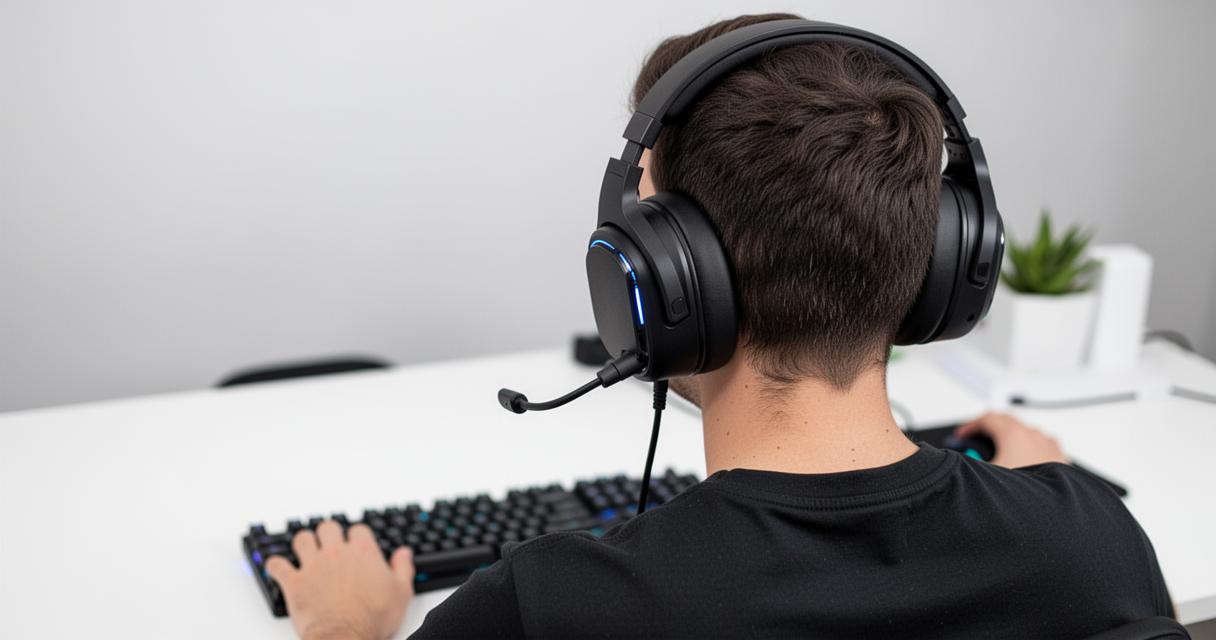
Many modern gaming headsets are designed with a USB connection in mind, and the PS4 accommodates these effortlessly through the USB ports on the front of the console. A wired USB headset typically carries its own built-in audio processing, which can deliver notably rich sound quality compared to the analogue route through the controller. To begin, simply plug the USB connector into one of the available front ports and power on the console. In most cases, the PS4 will recognise the device automatically, though a quick visit to the audio settings will help you confirm everything is configured properly. This method is particularly favoured by gamers who prioritise noise reduction and consistent audio performance throughout long sessions.
Configuring Input and Output Devices for the Microphone
After connecting a USB headset, it is worth verifying that the PS4 has correctly assigned it as both the default audio output and the active input device for the microphone. Navigate once again to Settings, then Devices, and then Audio Devices. Here you will find separate dropdown menus for Input Device and Output Device, both of which should reflect your connected USB headset. Selecting the correct device in each field ensures that your voice is transmitted clearly in party chats and multiplayer sessions alike. It is also advisable to run a microphone test from within this menu, as it provides immediate feedback on whether your setup is functioning as expected before you jump into a game.
Linking wireless bluetooth headsets and adapters
Using compatible usb dongles and transmitters
Wireless audio is increasingly popular among gamers seeking freedom of movement without sacrificing audio quality. While the PS4 does not natively support standard Bluetooth headsets for gaming audio due to latency considerations, many manufacturers offer dedicated USB dongles or transmitters that are specifically compatible with the PlayStation platform. These small adapters plug into the front USB ports of the console and handle the wireless communication independently, bypassing the standard Bluetooth stack entirely. This approach maintains a stable, low-latency connection and is the method recommended for wireless headsets that advertise PS4 compatibility. Some adapters operate on a dedicated radio frequency, which further reduces interference compared to standard Bluetooth implementations.
Pairing peripherals for lag-free gaming audio
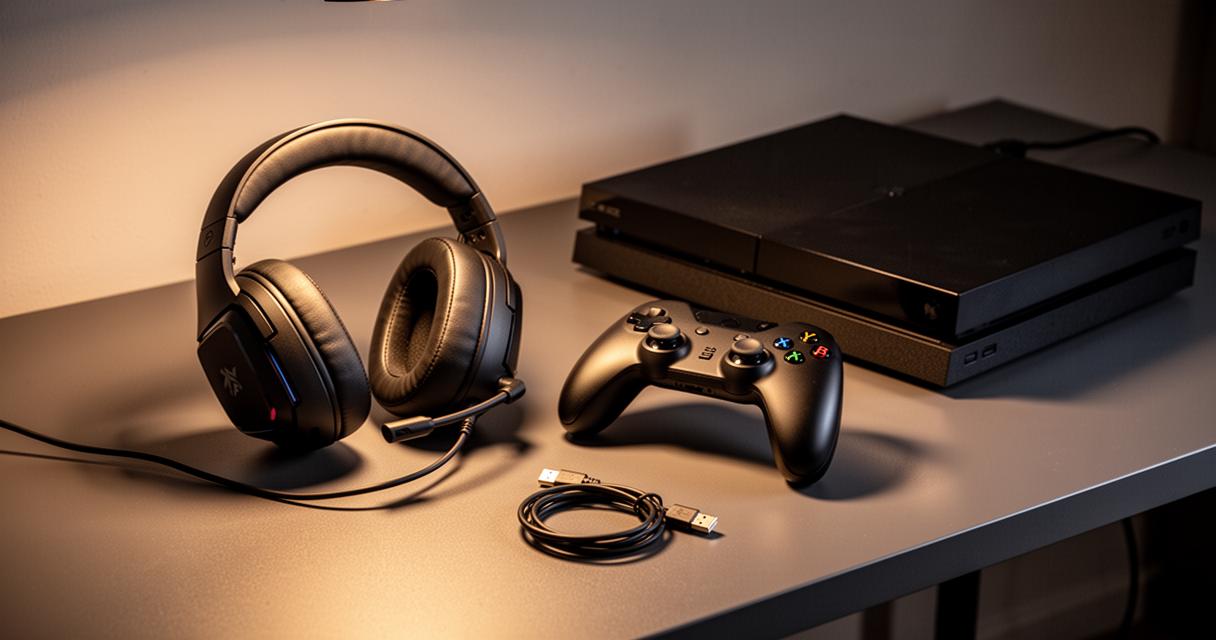
Pairing a wireless headset via its USB dongle is generally a matter of plugging in the adapter and powering on the headset, at which point the two devices synchronise automatically. Once paired, the PS4 recognises the headset as an audio device in the same way it would a wired option, and the same PS4 audio settings menu allows you to configure output and microphone preferences accordingly. For those who own a headset that lacks a dedicated dongle, an external DAC connected via optical output from the console can serve as an intermediary, routing audio to the headset while a separate 3.5mm jack connection to the controller handles the microphone channel. This kind of hybrid approach does require a bit more configuration but offers considerable flexibility for audiophile gamers who already own high-quality headphones and wish to repurpose them for their PlayStation setup. Whatever your chosen method, taking a few minutes to fine-tune the audio settings on your PS4 will reward you with a noticeably richer and more immersive gaming experience from the very first session.